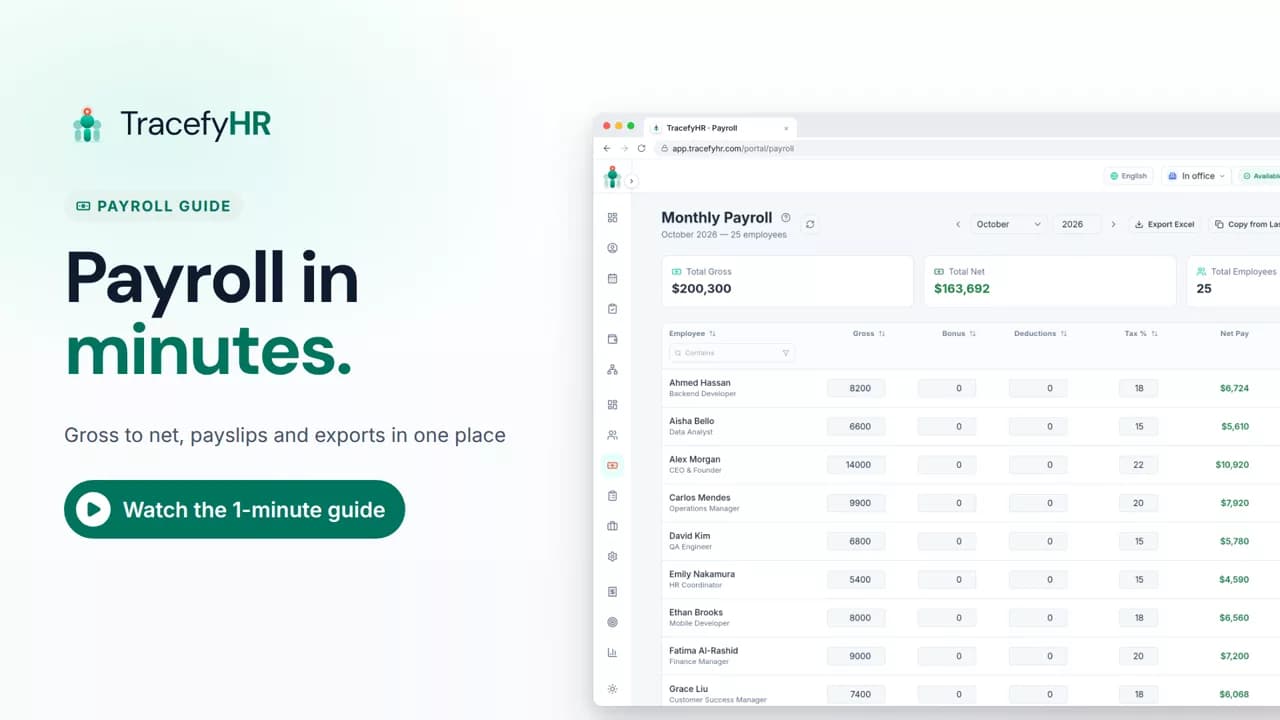
 Length 1:13
Payroll in minutes, not days
Watch how TracefyHR payroll works: copy last month, add a bonus and see net pay update live, finalize to lock the month, and give everyone a PDF payslip.
For managers and HR
Analytics turns your payroll, expenses and revenue into clear charts for the year. In this short video you see salaries versus expenses, your top expense categories and employee profitability, then the annual summary rolls up the whole year and exports to Excel month by month.
Prefer reading?
Analytics and reports
The same task in the user guide, step by step with screenshots.
Open the articleThe full narration of the video. Select a time to jump to that moment.
0:01Board meeting next week? Your numbers are already done.
0:06Analytics turns your payroll, expenses and revenue into clear charts.
0:13See where the money goes: salaries versus expenses, and your top expense categories.
0:20Employee profitability compares each person's salary cost with the revenue you record for them.
0:27The annual summary rolls up the whole year: revenue, expenses, profit and headcount cost.
0:35Export the whole year to Excel, month by month.
0:40Reports your accountant and your board can read, without building a spreadsheet.
0:46Click Export Excel to download your first report.
Four charts for the year you pick: revenue versus expenses over 12 months, salaries versus expenses, employee profitability and your top expense categories. They are built from your payroll, your approved team expenses and the revenue you record.
It compares each person's salary cost, which is their net pay, with the revenue you record for them in payroll. The chart is only as complete as the revenue you enter.
Yes. Click Export Excel on the Analytics or Annual Summary page to download the year's profit and loss summary, month by month. The file holds the numbers, not the charts.
Analytics is part of the Professional plan, $49 a month for up to 250 employees. Every plan starts with a 30-day free trial and no credit card is required.
Length 1:13Watch how TracefyHR payroll works: copy last month, add a bonus and see net pay update live, finalize to lock the month, and give everyone a PDF payslip.
For managers and HR
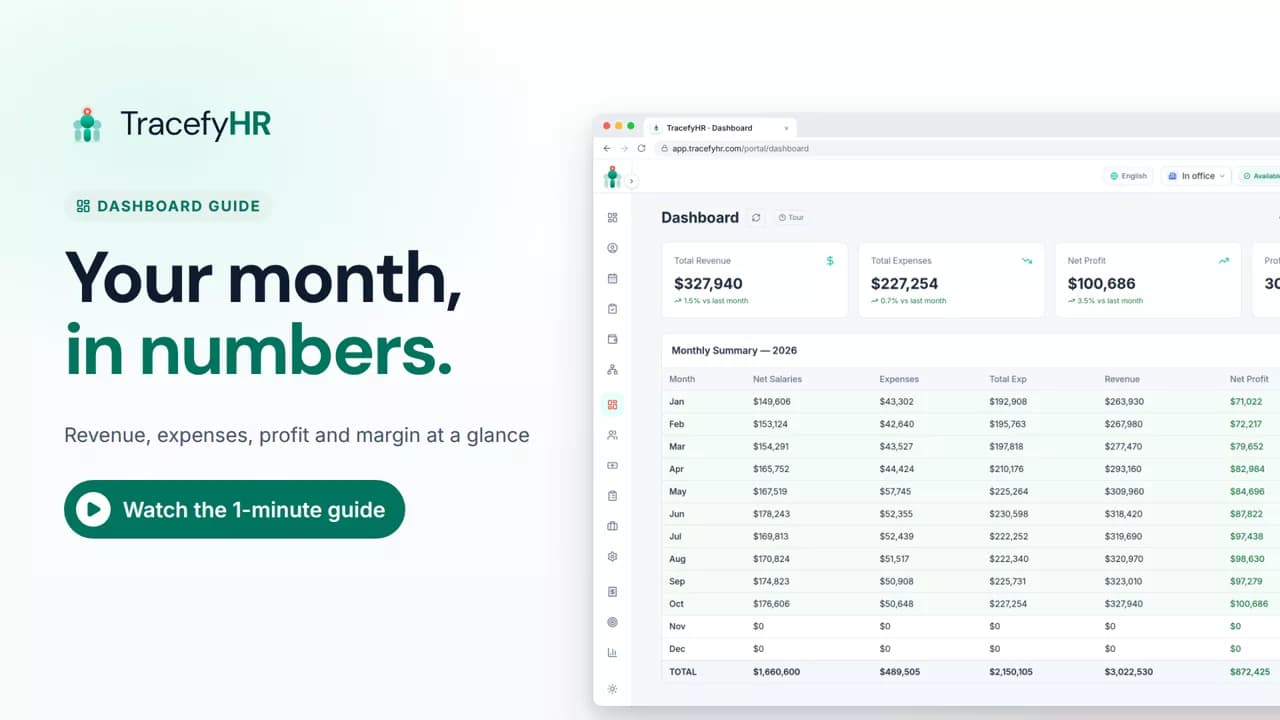 Length 0:51
See how the TracefyHR Dashboard shows revenue, expenses, net profit and margin for any month, built from payroll and approved expenses, with a year summary.
For managers
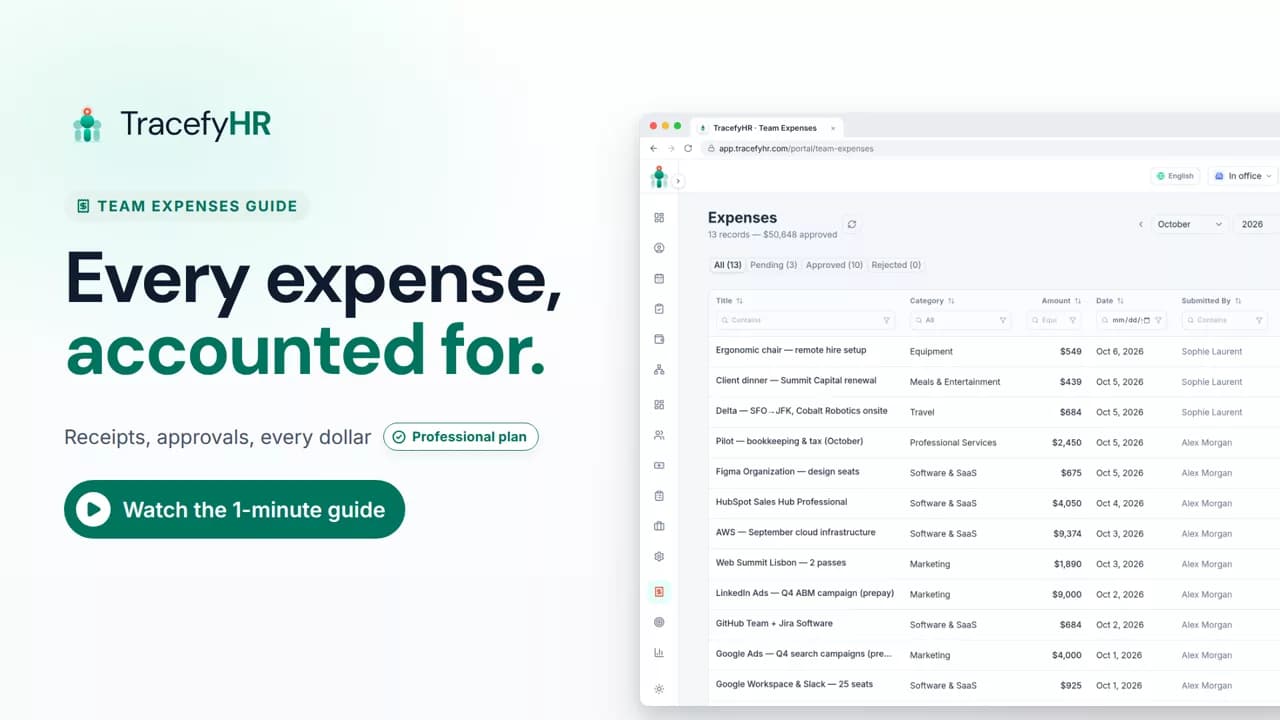 Length 1:14
See how TracefyHR Team Expenses works: log an expense with its receipt, approve or reject it in one click, export any month to Excel, and update your budget.
For managers and HR
Set up your company, invite your team, and see if TracefyHR fits. Free for 30 days — no credit card required, cancel any time.