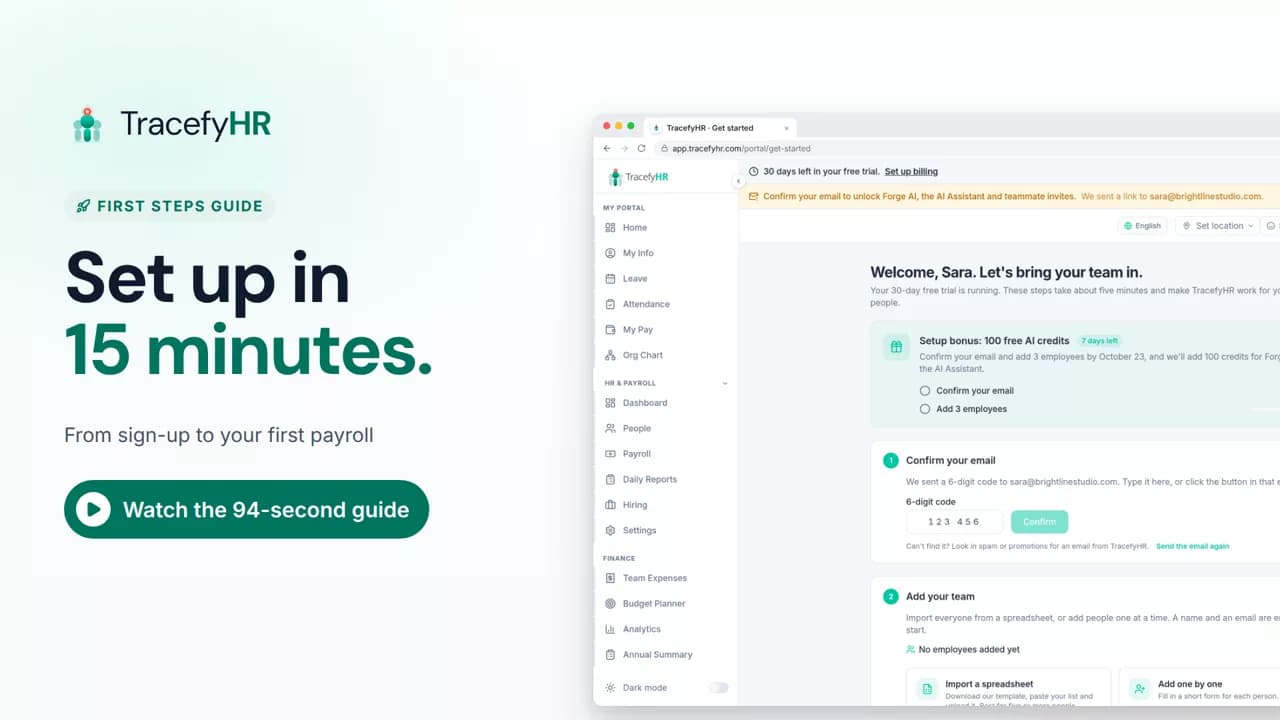
 Length 1:35
Set up TracefyHR in 15 minutes
Set up TracefyHR in about 15 minutes: confirm your email, add your first employee, add your logo, invite your HR lead and run your first payroll, step by step.
For owners
Home is the first screen you see in TracefyHR, and it answers the questions every workday starts with. In this short video you see who's out today, tomorrow and this week, who has checked in or is on leave, the team's birthdays and work anniversaries, your own leave balance one click from a new request, and the bell that tells you when your leave is approved or rejected.
Prefer reading?
Tour the dashboard
The same task in the user guide, step by step with screenshots.
Open the articleThe full narration of the video. Select a time to jump to that moment.
0:01Every workday starts with the same questions. Who's in? Who's off? Whose birthday is it?
0:07Home answers them on one screen.
0:10See who's out today, tomorrow or this week, before anyone has to ask.
0:17Managers also see who's checked in, who's on leave, and who isn't in yet.
0:23Never miss a birthday or a work anniversary again.
0:29Your own time off is right here too, one click from a new request.
0:34And your bell tells you when your own leave is approved or rejected.
0:39No spreadsheets to open, no group chats to scroll. You start the day knowing what's happening.
0:46Take a look around, and try Request Time Off for your next break.
Your own time off, who's out today, tomorrow or this week, and upcoming birthdays and work anniversaries. Managers also see the team's attendance for the day: who has checked in, who's on leave and who isn't in yet.
Yes. The Who's out card on Home has Today, Tomorrow and This week tabs, so you can see who's away before anyone has to ask.
Your leave balances are in the My time off card. Click Request Time Off there, pick the leave type and dates, and your manager is notified.
The bell at the top of the page shows a notification when your own leave request is approved or rejected.
Length 1:35Set up TracefyHR in about 15 minutes: confirm your email, add your first employee, add your logo, invite your HR lead and run your first payroll, step by step.
For owners
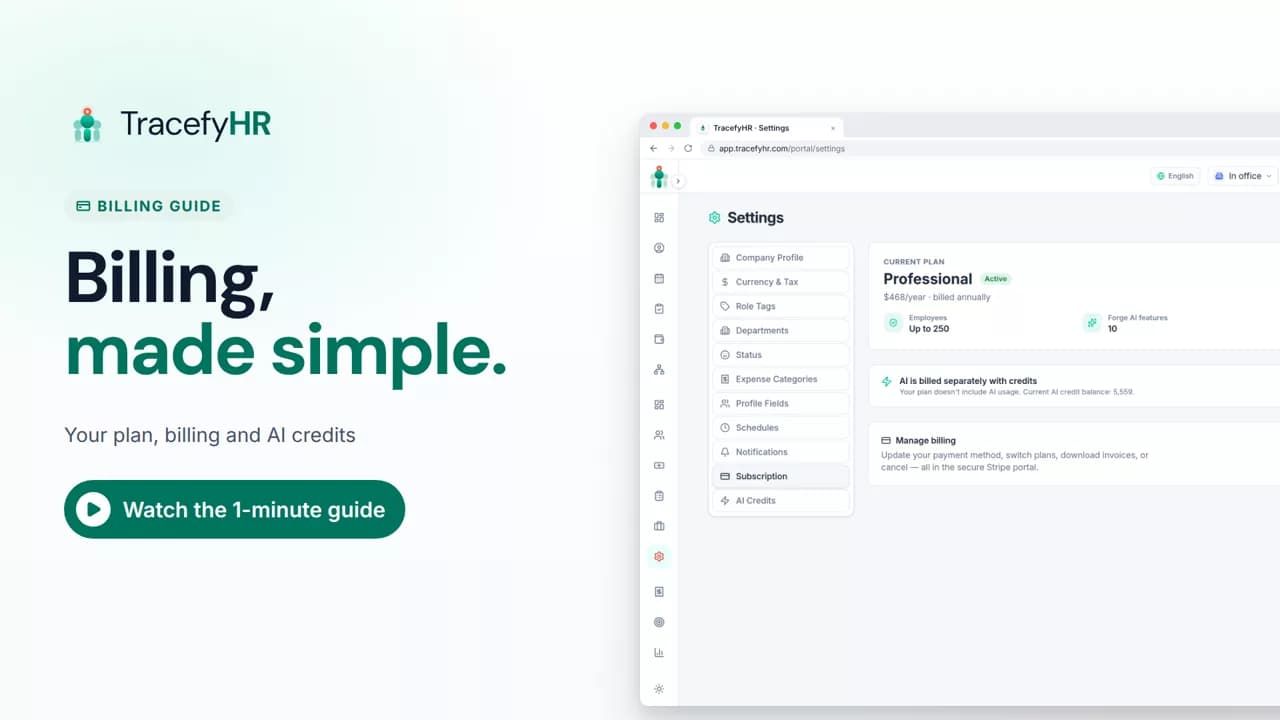 Length 0:57
See how TracefyHR billing works: one flat price for your whole team, plan changes from the billing portal, and AI credits that never expire, from $5 a pack.
For managers
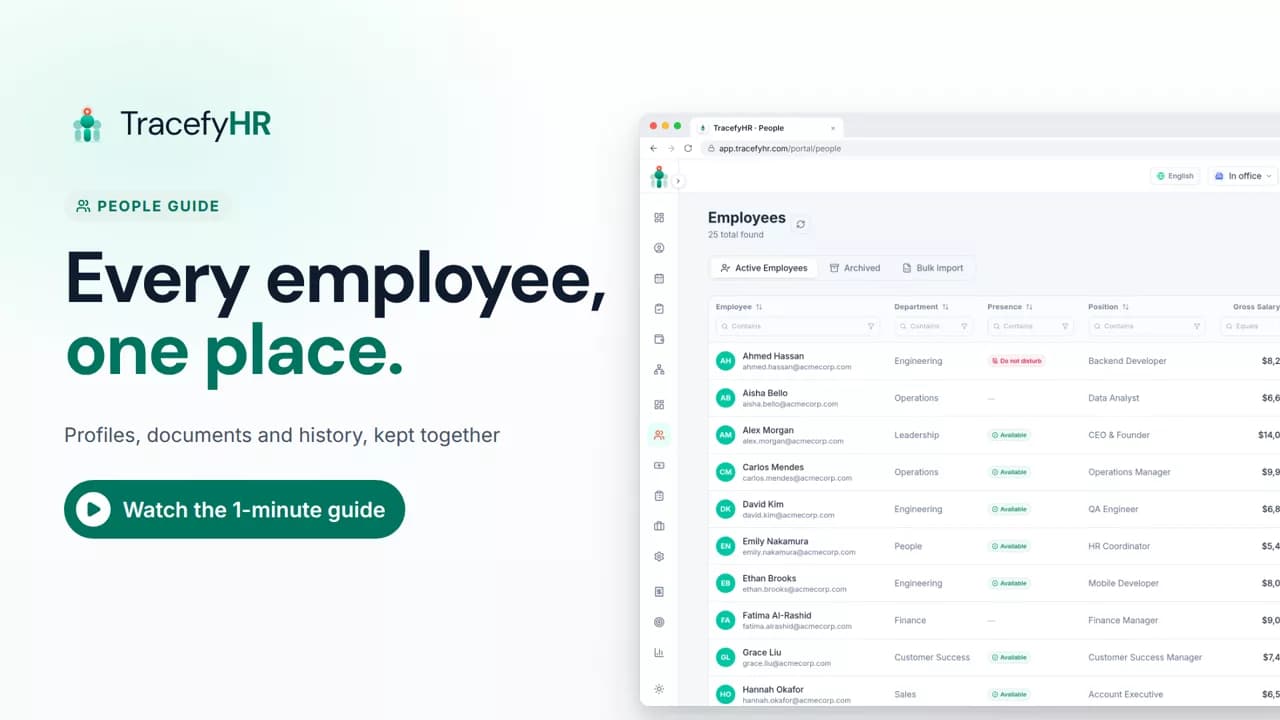 Length 1:11
See how TracefyHR People keeps every employee in one place: add someone in about a minute, import your team from Excel, open profiles and archive leavers.
For managers and HR
Set up your company, invite your team, and see if TracefyHR fits. Free for 30 days — no credit card required, cancel any time.