Tour the dashboard
A guided walkthrough of the unified TracefyHR portal — what's in the sidebar, the dashboard widgets you'll use most, and where every section lives.
When you log in to TracefyHR, you land at /portal — one workspace for HR, Managers, and Employees. The layout is identical for every role; only the menu items and dashboard widgets you can see change based on permissions.
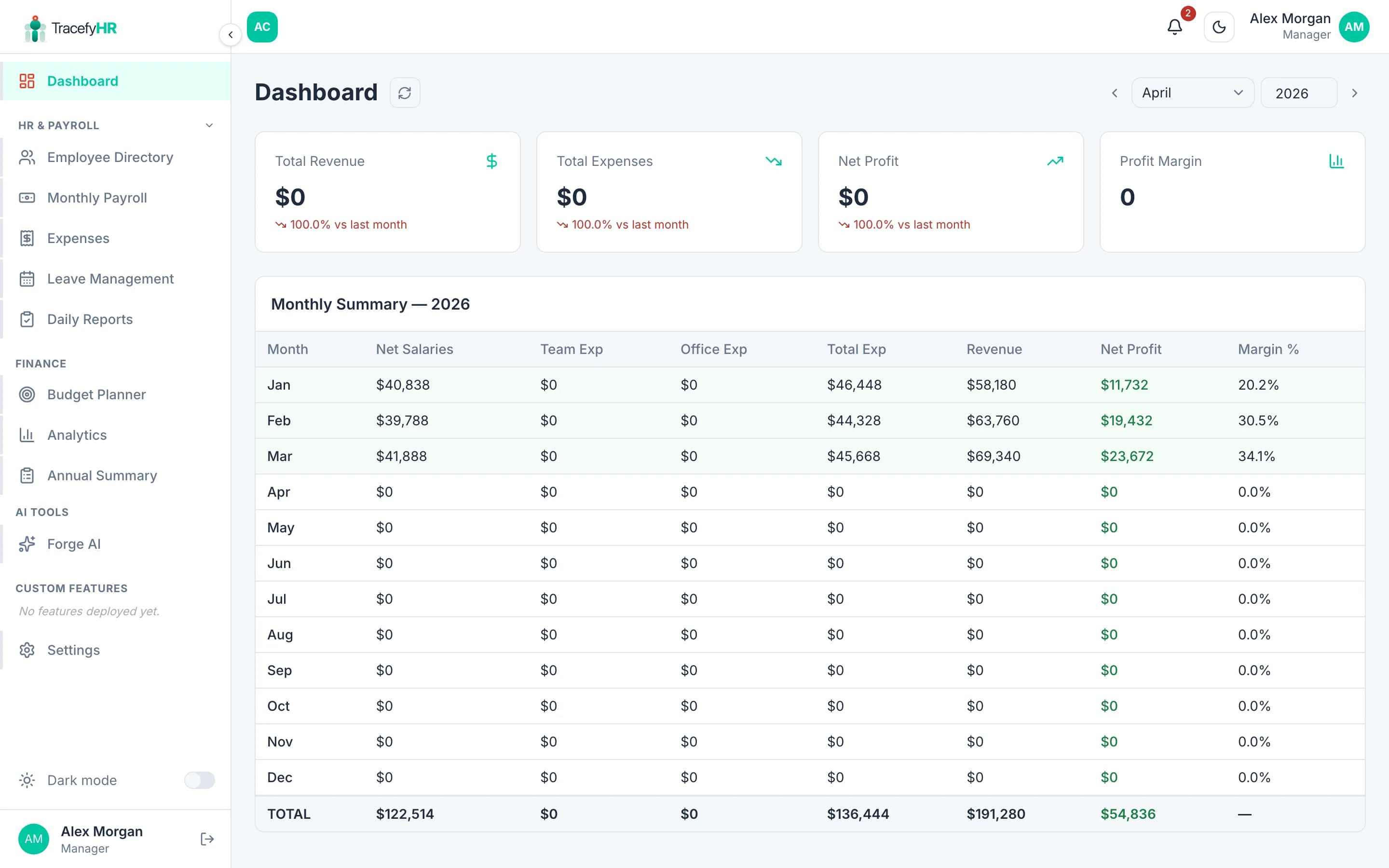
The three regions of the portal
- Left sidebar — the main menu, grouped by capability.
- Top bar — your status, search, notifications, and avatar.
- Main area — whatever section you're in. Loads with a route-aware skeleton on hard refresh, so the layout never jumps.
What's in the sidebar
The sidebar is grouped into sections so you can find things fast. Different roles see different items:
| Section | Who sees it | What's inside |
|---|---|---|
| Home | Everyone | The dashboard you're looking at |
| My Info | Everyone | Your own profile, leave, payslips, documents |
| My Leave | Everyone | Apply for leave, see your balance and history |
| Attendance | Everyone | Daily check-in / check-out and history |
| Daily Reports | Everyone | Your work plans and end-of-day notes |
| Org Chart | Everyone | Visual reporting structure |
| Dashboard | HR, Manager | Company-wide pulse — attendance, leave, data quality |
| People | HR, Manager | Employee directory, add / edit / archive people |
| Payroll | HR + finance, Manager | Run monthly payroll |
| Team Expenses | HR + finance, Manager | Submit and approve expenses |
| Settings | Manager | Company profile, currency, leave types, permissions |
| Forge AI | Manager (and HR with permission) | Build custom features |
Don't see something you expect? Permissions decide what you can access. Ask your Manager to grant canAccessFinance or canAccessForge if you need finance or Forge access. See Managing permissions.
What's at the top
- Your status pill — shows your current presence (Available, In a meeting, Out, etc.). Click it to update your status, optional note, or location.
- Search (⌘K) — instantly jump to any person, payroll month, or feature.
- Notification bell — alerts for leave decisions, expense approvals, payroll updates.
- Your avatar — open your profile, change your password, or sign out.
What's on the dashboard itself
The dashboard surfaces the cards that matter most for your day. Each one is self-contained, role-aware, and renders a layout-shaped skeleton while it loads — no flash of "your account isn't linked" before the data arrives.
My Attendance card
Shows where you are in the day:
- 🔵 Not checked in — primary CTA Start my day opens the check-in form.
- 🟢 Checked in — shows today's check-in time, your work plan, and a Check out CTA.
- ⚫ Day complete — summary of the full day, no further action.
My Time Off card
Two leave-balance pills (Vacation + Sick by default), used-this-year tally, and a one-click Request Time Off button that opens the apply dialog.
Smart notifications (HR / Manager)
Quietly surface things that need attention, like "6 employees missing reporting manager — Assign manager" or "3 documents waiting review". Each one links to the screen that fixes it. Counts auto-update once the issue is resolved.
Celebrate this week
Birthdays and work anniversaries this week, with avatars and a small confetti accent. Defaults to a quiet empty state when nothing's happening.
Team attendance (HR / Manager)
A 7-day stacked bar showing how many people checked in / on leave / absent each day. Useful for spotting coverage gaps before they become problems.
Data quality (HR / Manager)
Highlights records that need cleanup — missing reporting manager (excluding root employees), missing salary, expired contracts, and so on. Click any row to jump straight to the employee profile.
Stuck on what a number means? Click the small ? info icon next to any column header. Every metric in TracefyHR has an explanation tooltip — no need to memorise definitions.
Replay the tour any time
If you skipped the welcome tour or want a refresher, click Tour next to any page title. It walks you through that page step by step.
Related
Last updated 2026-05-05