The Budget Planner
Set annual targets, track month-to-month actuals against plan, and spot overspend before it hits — the TracefyHR Budget Planner for Managers.
The Budget Planner is where forecasting meets reality. You set targets at the start of the year, and TracefyHR fills in the actuals as payroll and expenses roll in. The result: you always know where you stand against plan, without a spreadsheet in sight.
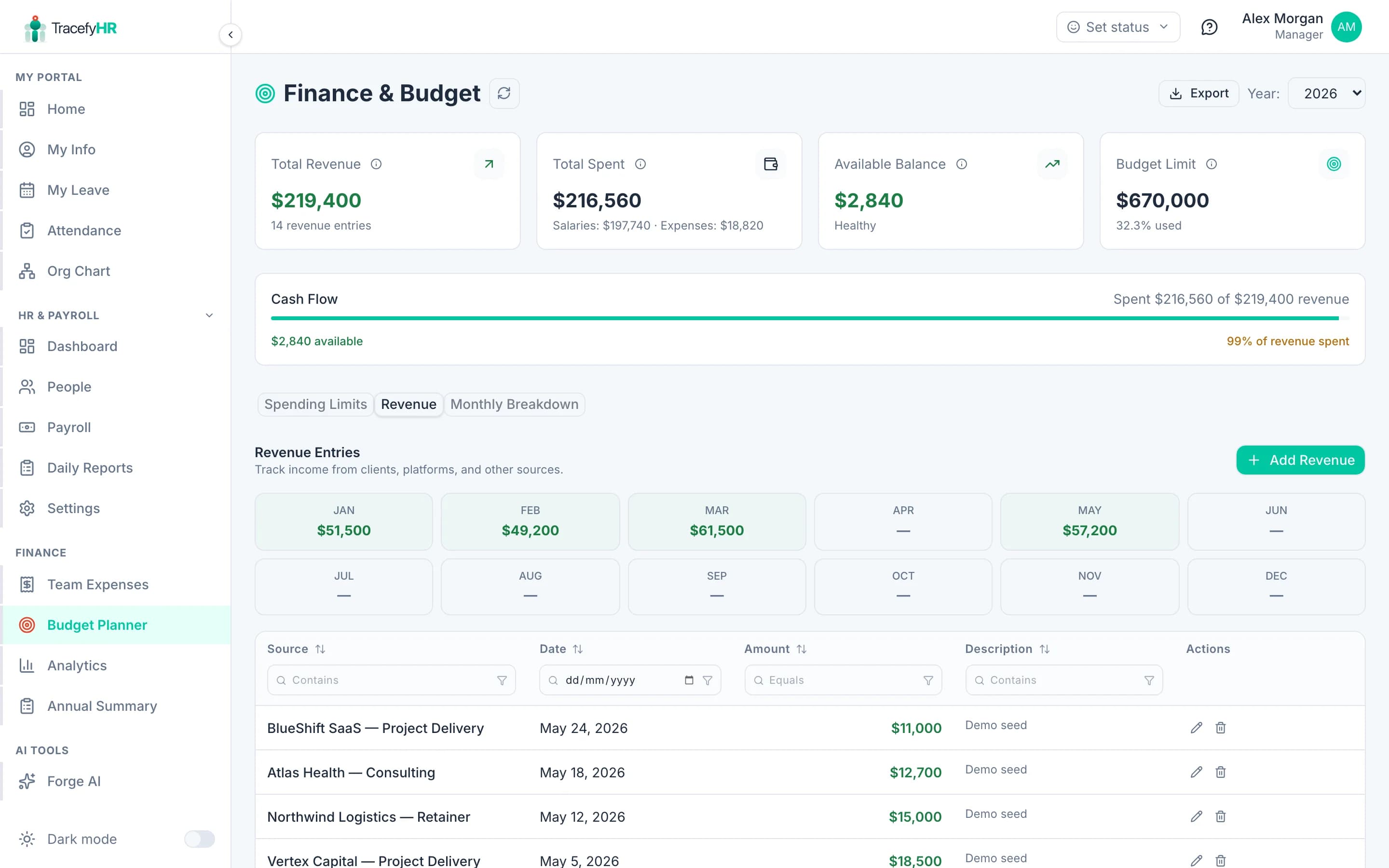
The Monthly Breakdown tab shows the per-month forecast vs. actual:
Two modes: Annual and Monthly
Annual Budget
A high-level view: one budget for Net Salaries, one for Total Expenses, for the whole year.
| Column | What it shows |
|---|---|
| Budget | What you set at start of year |
| YTD Actual | What you've actually spent so far |
| Remaining | Budget minus YTD actual |
| % Used | YTD actual ÷ budget |
| Status | 🟢 On Track · 🟡 Near Limit · 🔴 Over Budget |
Status thresholds:
- On Track — you're spending in line with the calendar (e.g. 50% of budget used by month 6 = on track)
- Near Limit — you're 10% above expected pace
- Over Budget — you've exceeded the budget for the year
Monthly Forecast
A more granular view: set revenue and expense targets per month, see actuals fill in.
| Column | What it shows |
|---|---|
| Target Revenue | What you forecast |
| Actual Revenue | What payroll's Revenue Generated column added up to |
| Target Expenses | Expense forecast |
| Actual Expenses | Approved expenses + payroll deductions |
| Variance | Actual − target (positive = better than plan for revenue, worse for expenses) |
Setting it up
Open Money → Budget.
Pick a year in the top-right selector (defaults to current year).
On the Annual tab, type your Net Salaries budget and Expenses budget for the whole year. Click Save.
On the Monthly tab, click into each month's Target Revenue and Target Expenses cells and type. Save once at the end.
Use last year's actuals as a starting point for next year's targets. Click Copy from previous year to bring forward all 12 monthly figures, then adjust where needed.
Where the numbers come from
Every figure on this page is read — you don't enter actuals manually. TracefyHR sources them like this:
- YTD Actual Salaries = sum of all Net Pay across finalised payroll months
- YTD Actual Expenses = sum of all approved expenses
- Actual Revenue per month = sum of Revenue Generated in finalised payroll for that month
- Actual Expenses per month = approved expenses dated within that month
This is why finalising payroll matters — un-finalised months don't count.
"How does this work?"
Click the ? How does this work? button at the top of either tab for an inline explanation of every column. Useful for new Managers and accountants reviewing the numbers.
Common questions
Why are my actuals lower than expected? Most likely you have un-finalised payroll months. The Budget Planner only counts finalised data.
My status is Over Budget in February — am I doing terribly? Not necessarily. The status is calendar-aware — being 17% through the year and over 17% of budget triggers it. Sometimes January is just an unusually expensive month (annual subscriptions, etc.). Look at the Monthly tab to see if it's a one-off or a trend.
Can I have departmental budgets? Not yet in the standard Budget Planner, but you can build a departmental tracker with Forge AI in 5 minutes. See Forge AI build your first feature.
Can HR see this?
By default, no — Budget is gated by the canAccessFinance permission. Grant it via Managing permissions if you want HR to see it.
Related
- Running monthly payroll (HR) — finalisation feeds budget actuals
- Tracking expenses (HR)
- Analytics and reports
Last updated 2026-05-05