Your dashboard
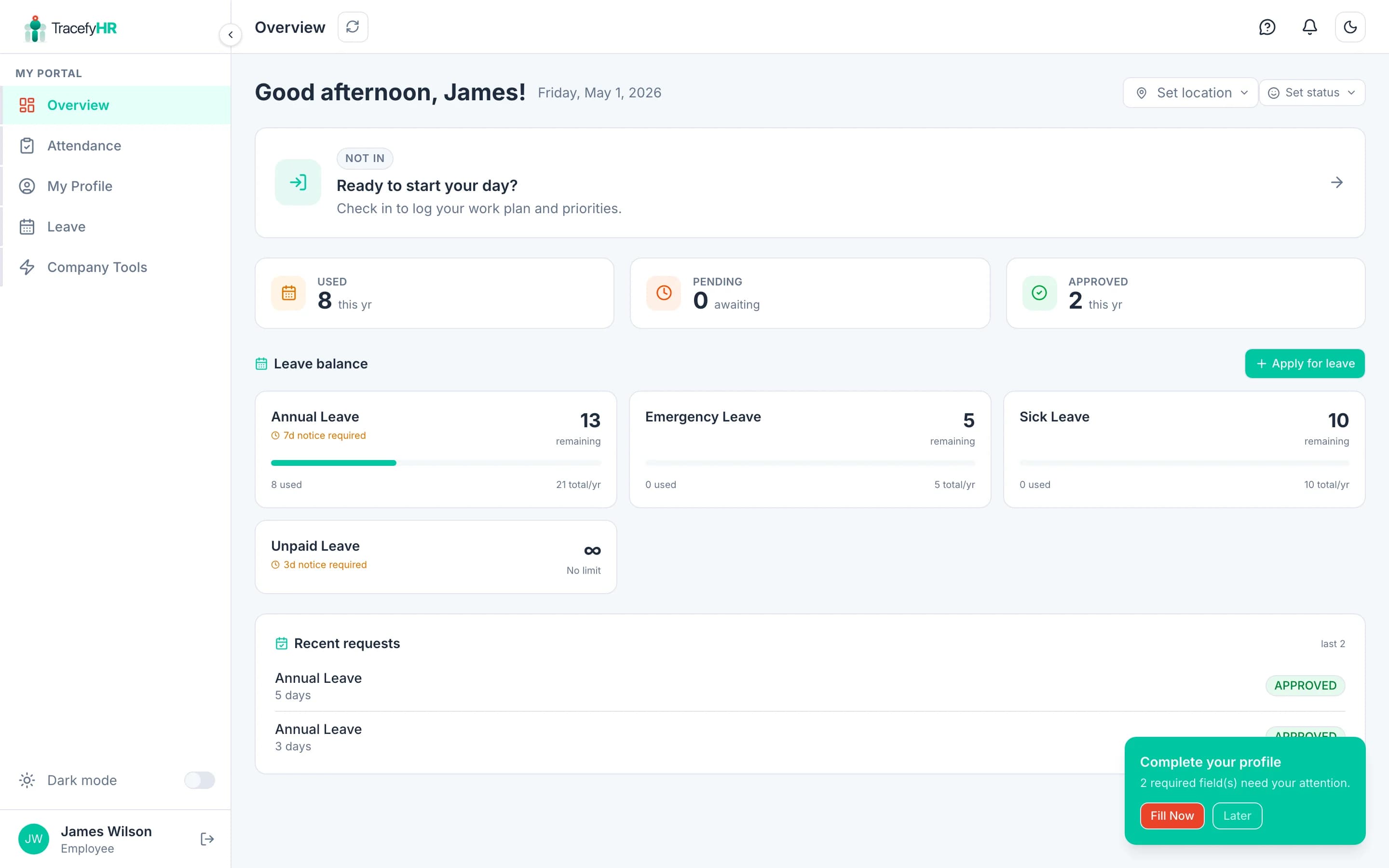
What an employee sees in the unified TracefyHR portal — the My Attendance card, My Time Off card, status pill, and notifications, all in one place.
When you log in, you land on the unified TracefyHR portal at /portal. It's the same workspace your HR and Managers use — but the cards you see are tailored to your day.
The dashboard is designed to answer three questions at a glance:
- Have I checked in today?
- How much leave do I have left?
- Anything I need to know about?
The status pill (top bar)
In the top bar you'll see a coloured pill showing your current presence — Available, In a meeting, Out, etc. Click it to:
- Pick a different status
- Add an optional note ("Customer call until 4pm")
- Set how long it lasts (auto-clears when it expires)
- Update your work location (Office / Remote)
Your manager and teammates see this pill on your profile and in the org chart — handy when someone needs to know whether to ping you.
My Attendance card
A self-contained card that always shows where you are in your work day:
- 🔵 Ready to start your day — primary Start my day CTA opens the check-in form (Work Plan, Top Priorities, Blockers).
- 🟢 Checked in at 9:14 AM — green status, summary of your check-in notes, and a Check out CTA.
- ⚫ Day complete · 9:14 AM – 5:30 PM — read-only summary of the full day.
You don't need to open a separate page to check in or out — the card handles both.
See Check in and check out for the full flow.
My Time Off card
Two balance pills (typically Vacation + Sick) with:
- Days remaining — big number, easy to read at a glance
- Used this year — small print so you know how it's trending
- A progress bar so you can see where you are in your annual quota
A single Request Time Off button at the bottom opens the apply dialog. Whichever leave type you click into, the form is pre-selected for you.
The dashboard never flashes "your account isn't linked" while it loads. Cards render a layout-shaped skeleton until the data arrives, so there's no scary banner on a fresh page load.
Notifications bell
The bell at the top shows new alerts:
- Leave request approved or rejected
- Custom feature submission decisions
- Payroll posted
- HR-issued announcements
Click an item to jump straight to the page that explains it.
Sidebar links you'll use most
| Link | What it does |
|---|---|
| My Info | Your full profile, leave history, payslips, documents |
| My Leave | Balance + apply for time off |
| Attendance | Check-in / check-out history |
| Daily Reports | All your work plans + end-of-day notes |
| Org Chart | See where you sit in the company structure |
What you can't see — and why
Employees see only their own data. You can't see:
- Other employees' leave balances or salaries
- Payroll figures for the whole company
- Settings, expenses, or budget information
If you need any of that, ask your HR or Manager.
Related
Last updated 2026-05-05