Managing companies
Invite new companies, view their status, suspend, and manage users.
Super Admin is the platform-level role — your job is to onboard new companies onto TracefyHR and keep their accounts healthy. You don't see inside a company's data (payroll, employees, etc.) — that stays private to each company. You manage the perimeter.
Log in at app.tracefyhr.com/admin/login.
Your dashboard
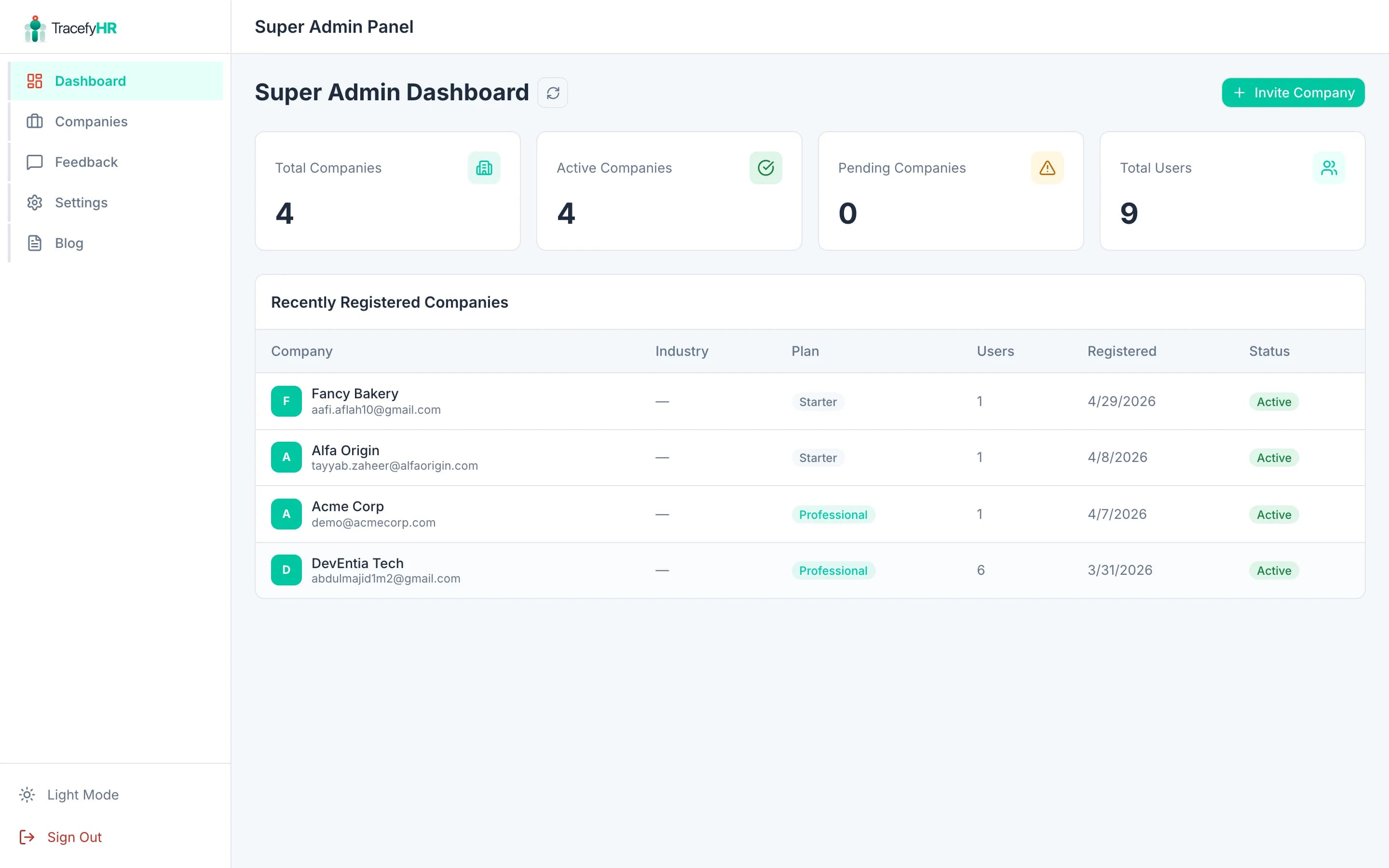
The Super Admin dashboard shows:
- Total companies — active across the platform
- Total users — across all companies
- Total employees — sum of every company's employee count
- Recent companies — newest 10, with status
Invite a new company
Click Invite Company on the dashboard or the Companies page.
Fill in the invite form:
- Company name
- Industry — searchable dropdown
- Admin email — the person who'll set up the company
Click Send invite. TracefyHR emails the admin a registration link valid for 48 hours.
Track the invite in the Pending invites section. You can resend if it expires, or revoke if it was sent in error.
View a company
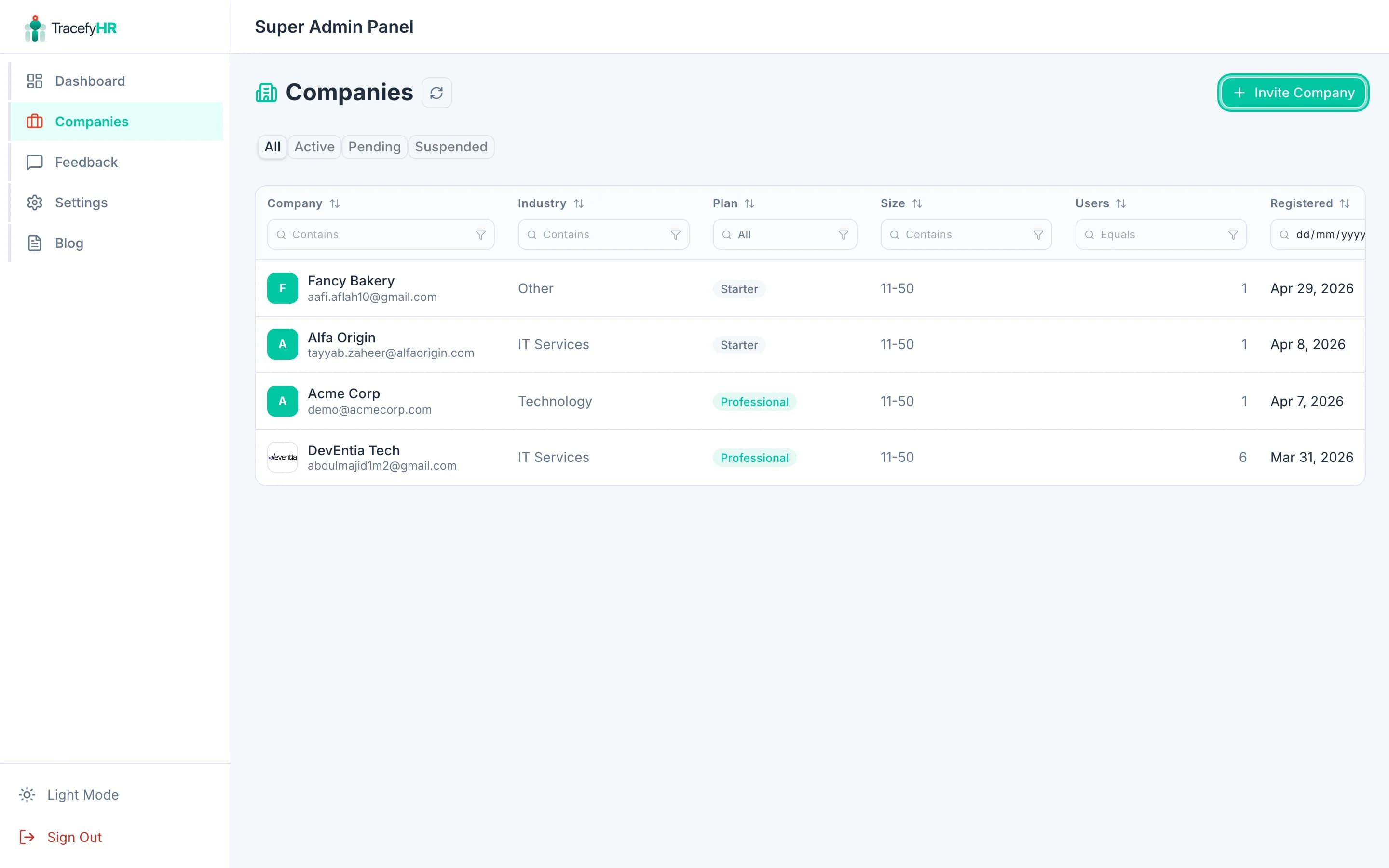
Click any company in the directory to see:
- Profile — name, industry, size, address (read-only — only their Manager can edit)
- Users — list of HR / Manager accounts
- Status — Active / Suspended / Setup pending
- Created date / Last activity
You cannot see their employees, payroll, or other internal data — that's intentional.
Suspend a company
Open the company. Click Suspend company.
Pick a reason (required for the audit log) — e.g. Non-payment, GDPR request, Test account cleanup.
Confirm. All users at the company are immediately blocked from logging in. Their data is preserved — suspending is reversible.
To reactivate, click Reactivate company on the same page.
Suspending blocks every login — including the company's Manager. Make sure the company knows it's coming, or you'll get a panicked support ticket.
Manage users at a company
In a company's Users tab:
- Toggle Leave Approver — designates a user as a leave approver (cross-company permission you grant from this Super Admin panel). See Assigning leave approvers.
- Suspend / activate individual users — useful when you don't want to suspend the whole company
Common questions
Can I see a company's payroll for support reasons? No — Super Admin doesn't have any visibility into company-internal data. To help, ask the Manager to share a screenshot or export.
A company says they need their data deleted (GDPR). Suspend first to stop new data being written. Then use the Permanent delete option (with two-factor confirmation). Once executed, all company data — employees, payroll, documents, Forge features — is wiped permanently.
I forgot the temp password I sent in an invite. You don't see it — TracefyHR shows passwords once, in the email. Resend the invite to generate a new one.
Can companies have more than one Manager? Yes — once they're set up, the first Manager can invite as many additional Managers as they want from inside the app.
Related
Last updated 2026-05-01