Updating your profile
Edit your name, email, photo, password, and personal info from the unified portal — what's editable, what's HR-only, and how it all syncs.
Your profile is your personal corner of TracefyHR. You control your name, email, photo, password, and any custom personal-info sections HR has opened for self-service. Salary, role, and other employment details stay HR-only.
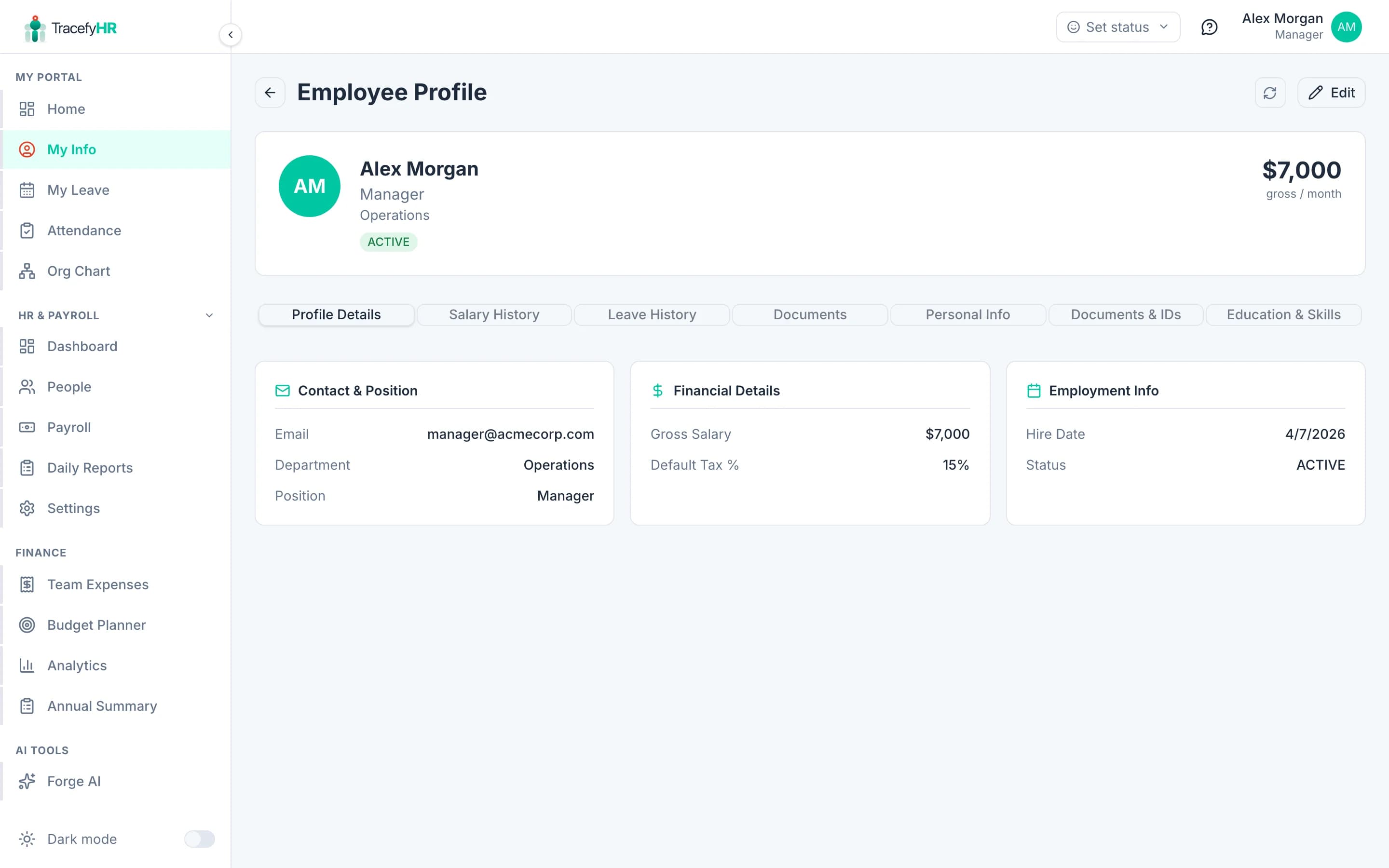
Open your profile
Click your name or avatar in the top right of any page, then choose My Profile — or go to My Info in the sidebar. The same view (/portal/my-info) renders for HR / Manager and Employee accounts alike.
What you can change yourself
| Field | Notes |
|---|---|
| Display name | What appears across the app and in emails |
| Your login email — you'll get a verification email when you change it | |
| Phone | With country code |
| Date of birth | Powers the Celebrate this week widget on the dashboard |
| Profile photo | Click your avatar in My Info → upload a square JPG/PNG/WebP (under 5 MB) |
| Password | See Change your password below |
| Personal info, education, skills, emergency contact | Whichever custom sections HR has marked editable for employees |
Change your password
Click Change password at the bottom of My Info (or use the avatar menu in the top bar).
Enter your current password, then your new one twice.
Click Save. You stay signed in on this device, but other sessions are signed out for security.
Pick a strong password. Minimum 8 characters with a mix of letters and numbers. Better still: use a password manager.
What only HR can change
These show as read-only on your profile:
- Job title / department
- Hire date
- Salary and tax rate
- Reports To (your reporting manager)
- Top of organization flag
- Documents — contracts, IDs, etc. uploaded by HR
If any of these need to change, ask your HR to update them. They'll do it in one click from the tabbed Edit dialog on your profile.
Common questions
I changed my email but I never got the verification. Check spam first. If still nothing, go back to My Info and click Resend verification. The pending email shows under your current one until verified.
Can I delete my account? Not from your side. If you're leaving the company, your HR will archive you — your profile becomes read-only and you can't log in any more, but your records stay on file for compliance.
Where do I see what my manager has set for me? Open the Profile Details tab on your profile — title, department, hire date, and reporting line all show there.
Why does the page show a skeleton for a moment when I refresh? That's the portal resolving which employee record is linked to your account. The skeleton renders so the page doesn't briefly flash "your account isn't linked" before the data arrives.
Related
Last updated 2026-05-05